How to use POSiDATA.Hub
Your pages, reminders, shopping list, and budget stay on this browser. They are not uploaded to a server. The pictures below use an example month, so you can see each part.
Sign in
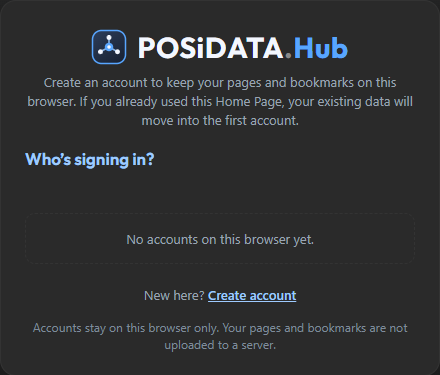
Create account makes a username and password on this browser. If you forget the password, that account cannot be opened. On a shared device, each person can have their own account. Use Log out when you finish.
Home
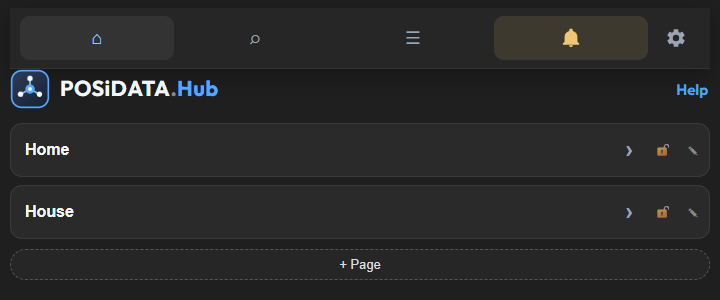
+ Page adds a page. Tap a page to open it. The pencil changes its name. The lock sets a 4-digit PIN. Tap the lock to lock the page again. Shift+click the lock to change the PIN. If you forget a PIN, use your account password to set a new one.
A page of links
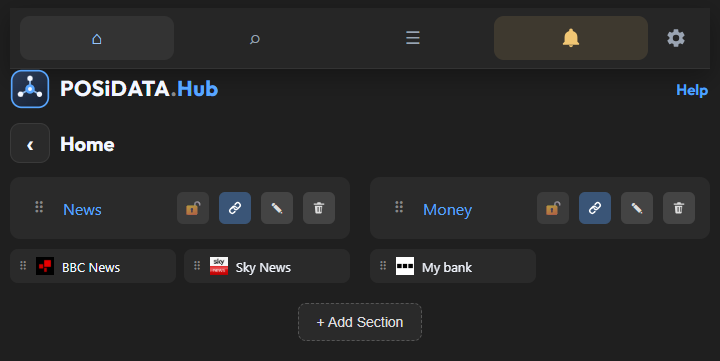
+ Add Section adds a group of links. Drag the handle to change the order. The pencil renames a section. The bin removes it. A section can be locked with a PIN in the same way as a page.
Add Link on a section. Search for a site, or type the name and address yourself. Tap a link to open it. The pencil edits it. The bin removes it. Drag a link to change the order.
Search
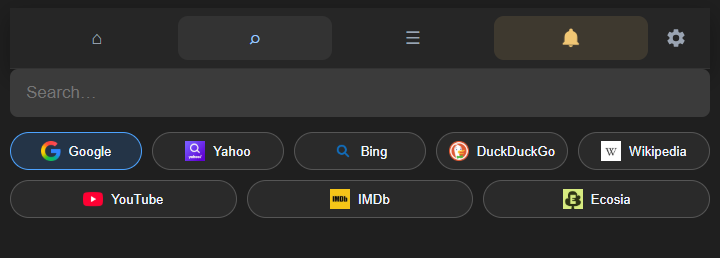
Type in the box, then tap an engine. The highlighted engine is the one that opens. Search needs the internet. It does not save what you type here.
Reminders
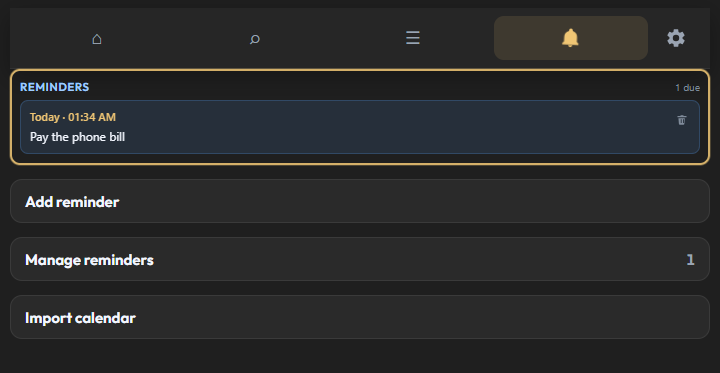
Add reminder sets a date, a time, and a description. When it is due, it appears at the top. The bin on that card removes it. Manage reminders lists every reminder so you can remove several at once. Import calendar reads an .ics file from Outlook, Google Calendar, Apple Calendar, and others. Each upcoming event becomes a reminder. A repeating event keeps only the first listed start.
More
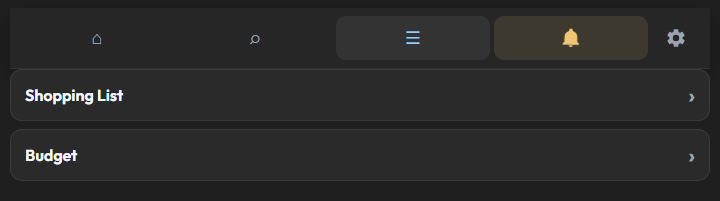
Tap the menu icon, then Shopping List or Budget. The back arrow on those pages returns here.
Shopping List
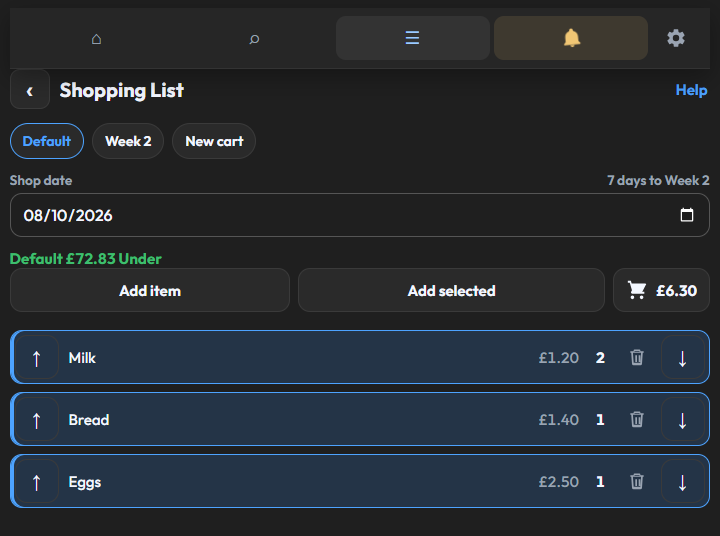
Use the shopping list for anything that comes out of the monthly budget, such as food, fuel, or another expense.
New cart adds another shop, so the month can be split across weeks. There is always a Default cart. Select a cart, then set its shop date. The number beside the date is how many days from that shop to the next cart. When it is the last cart, that number is the days to the end of its month.
The coloured line under the date is the same Under or Over as on the Budget page. Green means the cart is under its share of the month’s shopping money. Red means it is over. It changes as you add or remove items.
Add item puts a name and a price on the list. Tick Already bought if you have already paid for it. That adds one to the cart and marks it bought. Tick Selected to mark an item. Add selected puts one of each marked item into the cart you are on. Items already in that cart stay as they are.
The up arrow adds one to the selected cart. The down arrow takes one off. The number is how many are in that cart. The same item can have a different quantity in each cart. The bin removes the item from the list. The cart button opens the selected cart and shows its total.
Cart
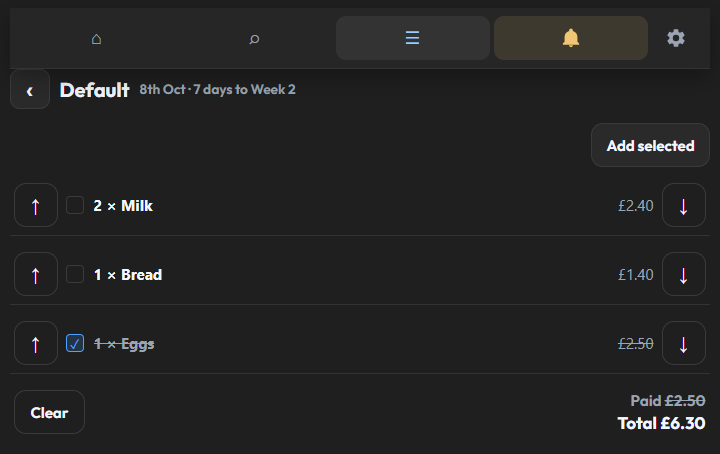
The date and the days to the next cart sit beside the cart name. Add selected does the same as on the list. Tick an item when you have bought it. Bought items stay in the total and are crossed out. Paid is only what you have bought.
The arrows change the quantity. Taking the last one off removes it from the cart. Clear finishes that cart. What you have bought is taken off the budget. What you have not bought is not charged. On a cart other than Default, the pencil renames it and the bin removes it. Remove does not charge that cart.
Budget
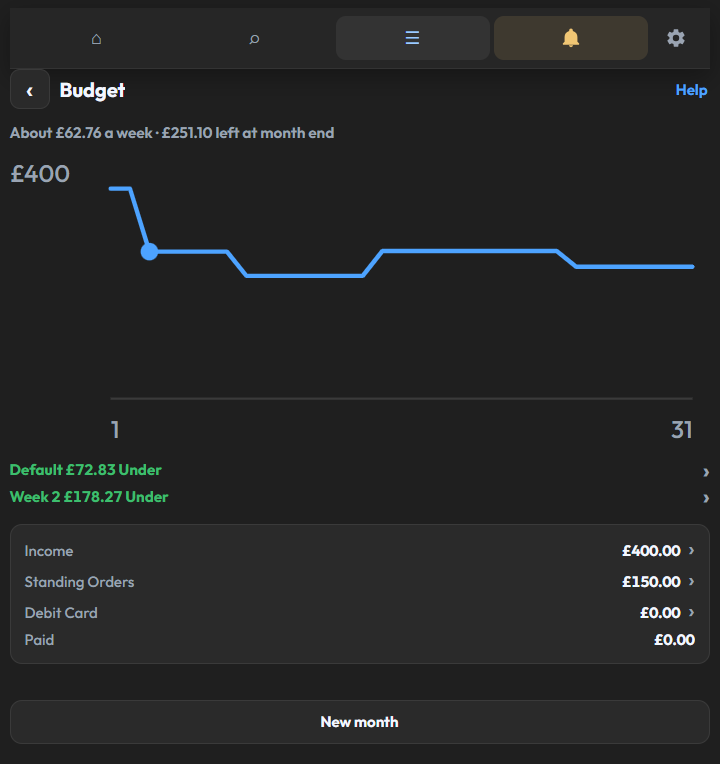
The line at the top is about how much you can spend on shopping each week from today. It is what the month ends with, plus the shops still to come, spread over the days left. With fewer than 7 days left, it shows that amount for those days. Beside it is what is left at the end of the month.
The graph falls on a shop date, including a shop still to come, and on the day a standing order leaves. Income raises it on its date. A debit-card expense lowers it on its date. A cleared shop is already taken off. Change an amount, then look at where the month ends. Reduce it until the month ends where you want it.
Each cart that counts this month has its own coloured line. The month’s shopping money is what is left at month end plus every cart. Each cart gets a share of that for the days it covers, up to the next cart or the end of the month. The Unders and Overs add up to what is left at month end. Tap a line to open that cart on the Shopping List.
Paid is money already taken off the balance, from shops you have cleared. New month clears Paid, and sets income amounts back to £0.00. Standing Orders stay. The shopping cart stays as it is.
Income
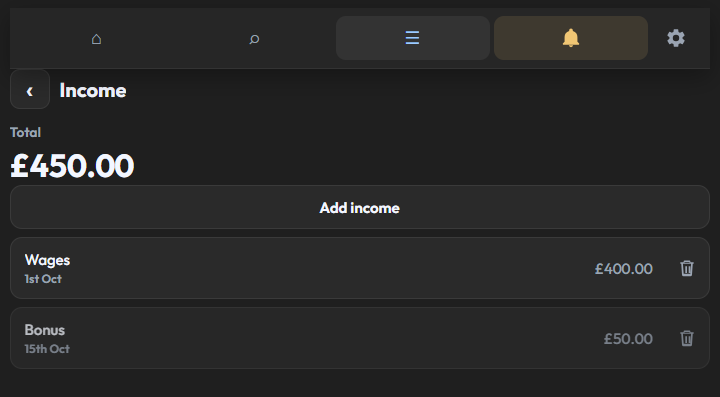
Tap Income on the Budget page. Add income sets a name, an amount, and the date it arrives. The graph rises on that date, including a date still to come this month. A later month stays out until the 1st, and the row is dimmed until then. The amount on the Budget page includes a line only once its date has arrived. The total on this page is every line. On the 1st, the list is cleared.
Standing Orders
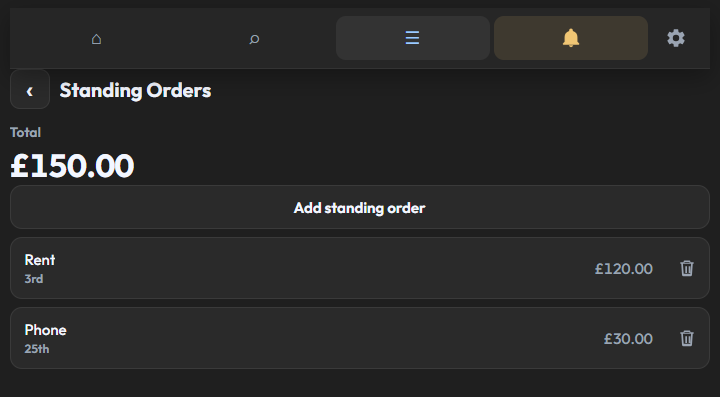
Add standing order sets a name, an amount, and the day of the month it leaves. If that day has already passed, it starts next month and the row says Next month. The total on this page is every order. The amount on the Budget page is only what counts this month. Standing Orders stay each month.
Debit Card
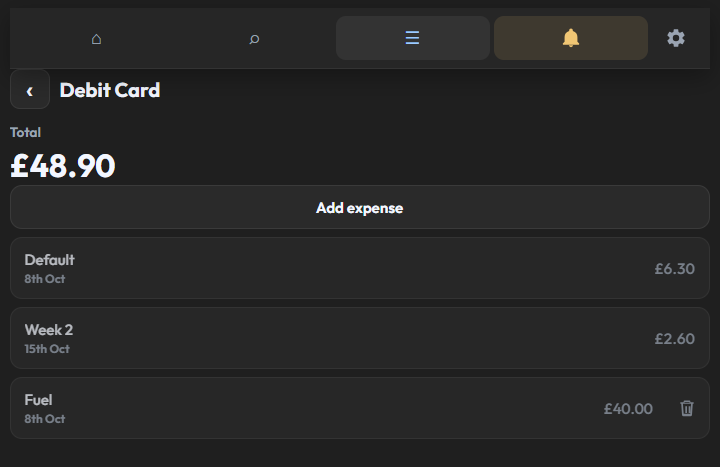
Each cart is listed with its name and shop date. Tap it to open that cart. Add expense is for any other card spending, such as fuel. Set the date it leaves. The graph falls on that date, including a date still to come this month. A later month stays out until the 1st.
The amount on the Budget page is what counts now. On the 1st, the added expenses are cleared. The carts stay.
Settings
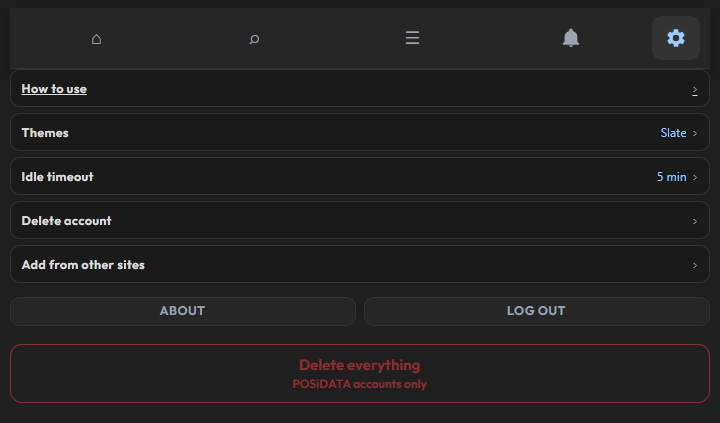
How to use opens this guide. Themes changes the look of the whole homepage. Idle timeout signs you out after a period with no activity. The usual time is 5 minutes. You can choose Never. Changing it needs your account password.
Delete account removes this account and everything in it from this browser. Add from other sites explains the bookmarklet, and an optional browser extension, for saving a link from another website. About explains what stays on this device. Log out locks the account until the password is entered again.
Delete everything removes every POSiDATA account on this browser, including usernames, passwords, pages, reminders, shopping lists, and the budget. It cannot be undone. Nothing is sent to a server.
When you are offline
Open the site once while you are online. After that, a launch with no connection still opens the last saved copy of the page. The Shopping List, the carts, and the Budget keep working, because that information is already on this device. Sign in still works for an account that already exists here. Search does not load until you are online again.